
How do I set exclusion rules between participants?
Before sending the invitations, you can set exclusion rules between participants. Just click Manage groups & exclusions from the event management page.
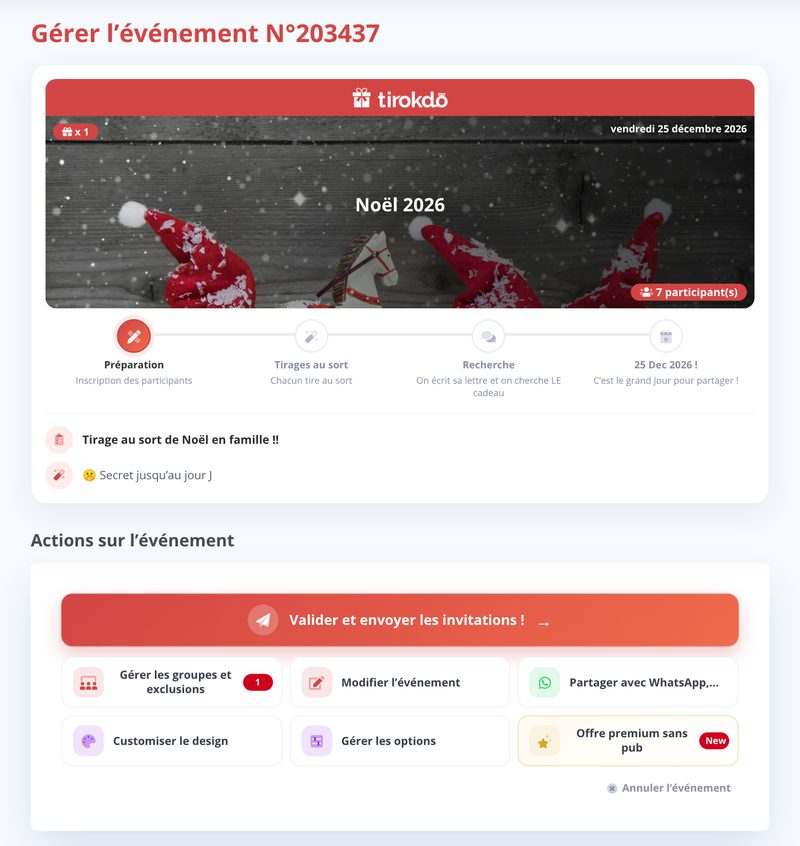
It's really handy for rules like "no drawing your partner", "no drawing your brothers and sisters", "no drawing someone from your own team", etc.
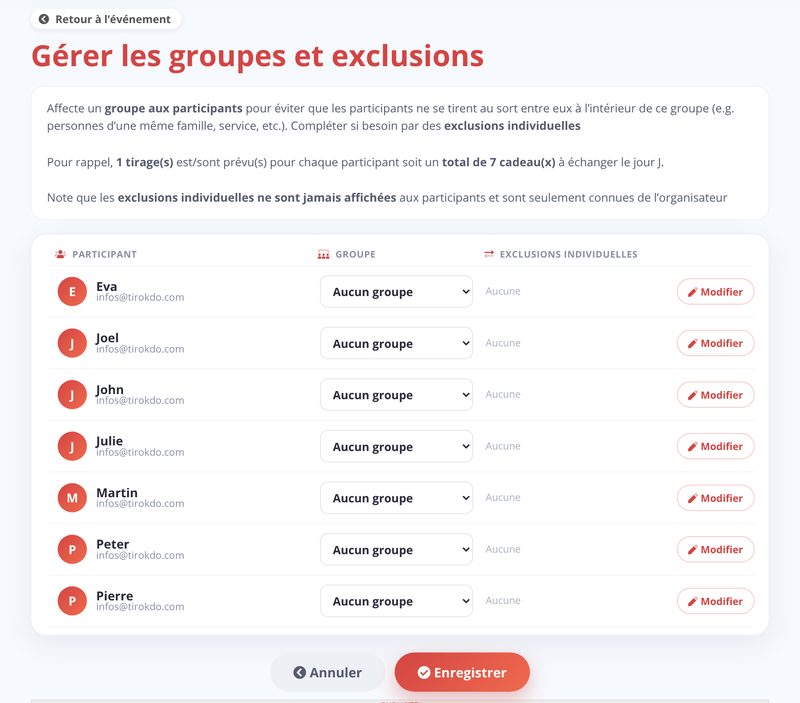
- 1 - Assign a group to participants: members of the same group can't draw each other (the quickest way)
- 2 - Set individual exclusions (Edit button on a participant's row) to stop one participant from drawing another (can be combined with groups)
Don't forget to click Save.
- Nobody can ever draw themselves (that wouldn't be much fun!).
- If A draws B, the system tries to avoid B drawing A.
- Exclusions aren't visible to participants (and that doesn't make cheating possible either!)
When you duplicate an event (last year's, for example), you have 2 options:
- Option 1: keep the exclusions from the previous draw
- Option 2: add the results of the previous draws as exclusions (so nobody gets the same person again). This option is only available if the duplicated event is over AND you've revealed the results at least at level 1.

Updated on: 15/10/2026
Thank you!